


You’ve set up the accounts, rotated the proxies, and opened an Incognito window for each profile. Then one morning, they’re all flagged. Linked. Gone. This is the fingerprinting problem, and an IP swap won’t fix it; neither would Incognito tabs.
The platforms you’re working across already know this. Their detection models have evolved well beyond IP tracking into deep browser fingerprinting, and most multi-account setups haven’t kept pace.
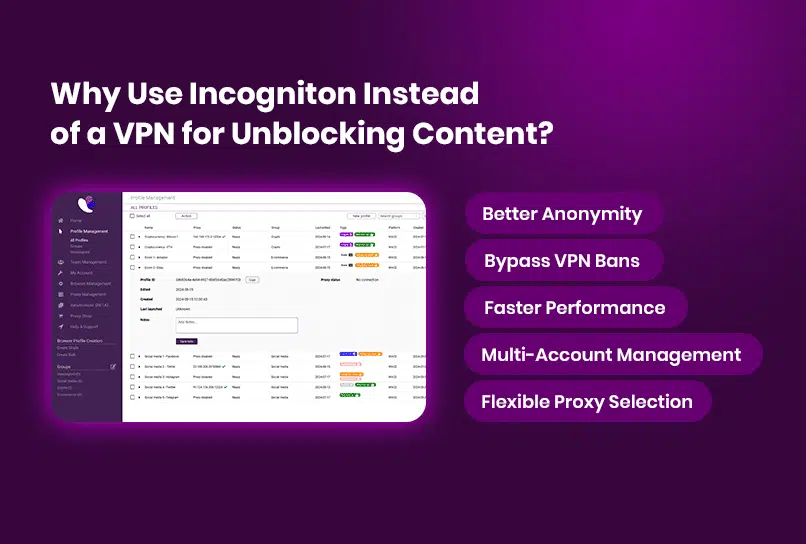
Incogniton is one of the tools trying to close that gap. This review examines what it actually delivers, and whether it succeeds for teams and individuals managing multiple identities in production environments.
Why Browser Fingerprinting Changes Everything
Cookies and IP addresses were never the whole picture. Modern platforms fingerprint browsers at a much deeper level, pulling signals that persist across sessions and are nearly impossible to reset reliably in a standard browser:
- Canvas and WebGL rendering output
- Operating system and timezone
- Screen resolution and device pixel ratio
- Installed fonts and media devices
- Audio context and hardware parameters
The problem isn’t that these signals exist. It’s that they remain consistent even when everything else changes. You can swap IPs, clear cookies, or open a private window—the fingerprint follows. When multiple accounts share enough overlapping signals, platforms don’t need certainty. Correlation is enough.Anti‑detect browsers exist to address this exact problem by reshaping how browsers present fingerprinting signals; Incogniton documents in detail in its documentation.
What Incogniton Is and How It Works
Incogniton is an anti‑detect browser built for managing multiple online identities with strict, durable separation, designed specifically for multi‑account workflows described on the Incogniton website. Where many tools focus on surface‑level changes—headers, user agents, or simple spoofing—Incogniton operates at the layer platforms actually scrutinize.
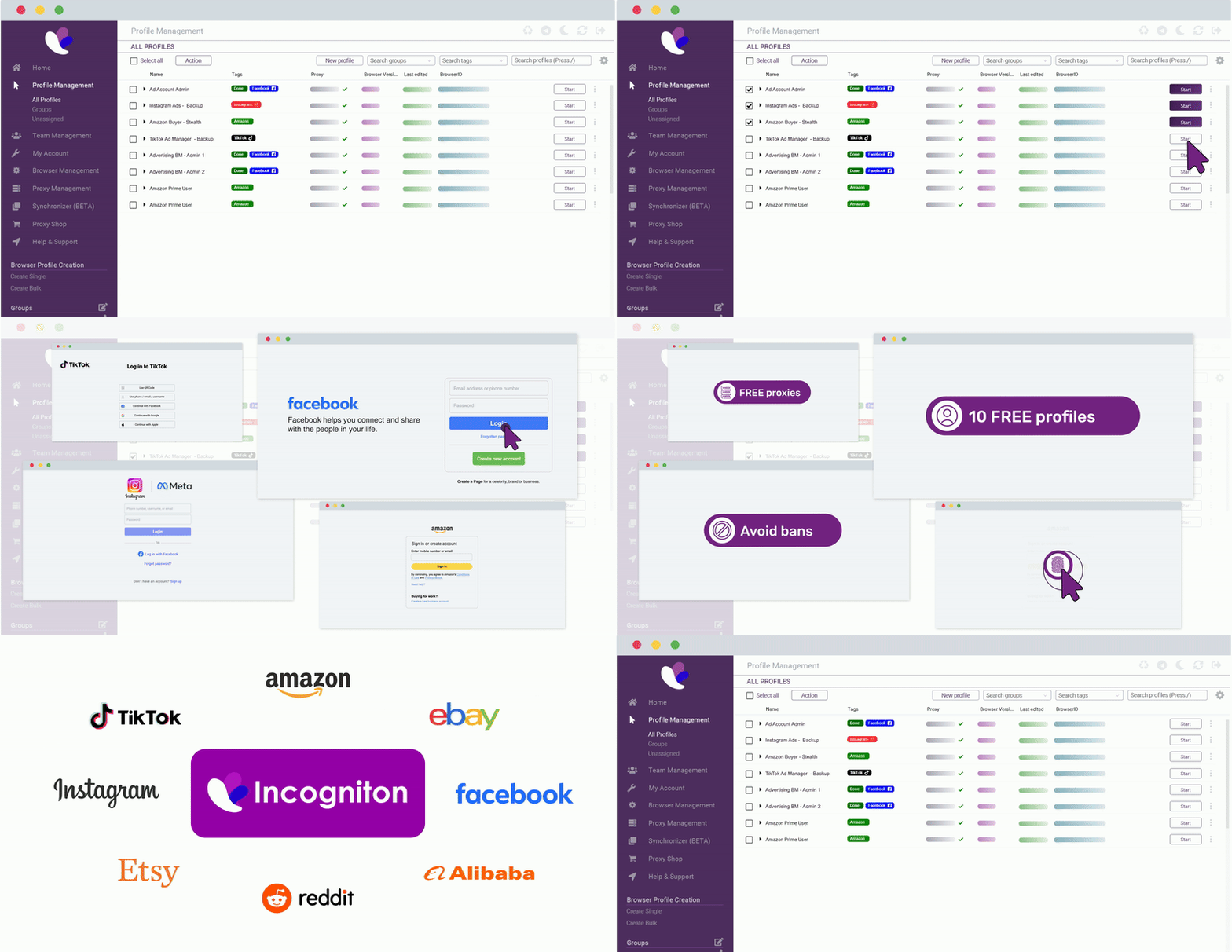
Each profile is assigned its own stable, realistic fingerprint and is isolated at the storage, configuration, and browser levels. To any website, every profile appears as a separate physical device. Thus, running ten profiles on the same machine looks externally like ten different machines.
Consequently, fingerprints do not drift. Profiles remain consistent across sessions, which is essential for workflows built around long‑term account behavior rather than disposable identities.
Side note on privacy: Incogniton is developed in the Netherlands and operates under GDPR‑compliant data standards.
Core Features of Incogniton
These features define how Incogniton approaches identity separation in practice, shaping how profiles are created, reused, automated, and managed at scale.
Profile‑Level Proxy Management
Each profile carries its own proxy assignment—residential, mobile, datacenter, or sourced from Incogniton’s built‑in marketplace—using the profile‑level proxy settings described in the Incogniton docs.
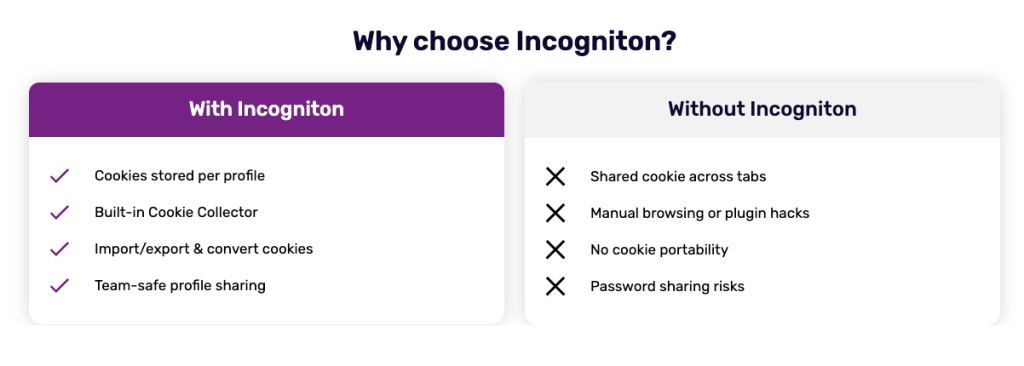
Network identity stays aligned with browser identity, and profiles do not bleed into one another unless explicitly configured.
Persistent, Isolated Profiles
Profile isolation is the core of what Incogniton does. Every profile maintains its fingerprint across sessions, built from a controlled set of browser, system, and hardware attributes. Accounts behave predictably over time, which is the baseline requirement for any serious multi‑account operation.
Cookie Management
Incogniton includes import and export tools alongside a built‑in Cookie Collector that generates natural browsing history for new profiles, a workflow outlined in the cookie management docs. This matters for platforms that factor historical cookie data into trust scoring—fresh profiles raise suspicion; warmed‑up ones don’t.
Automation Support
For technical users, Incogniton provides Python and TypeScript SDKs with a documented API covering profile creation, management, and lifecycle control. It integrates directly with Playwright, Puppeteer, and Selenium, allowing scripted workflows to run inside isolated profiles without breaking fingerprint integrity.
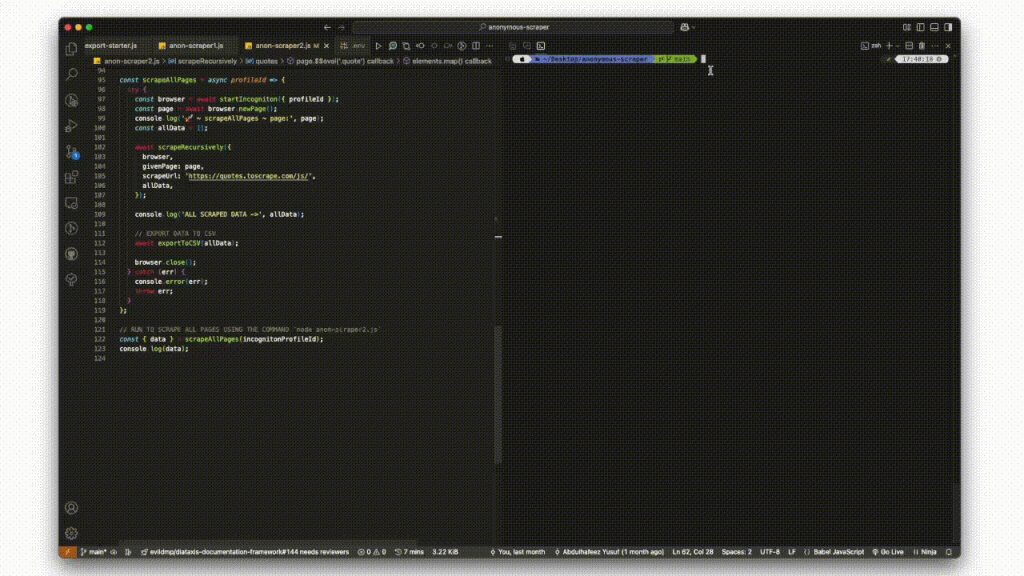
For reference, see the official Incogniton API and SDK documentation, along with the automation frameworks it integrates with: Playwright, Puppeteer, and Selenium.
Team Collaboration
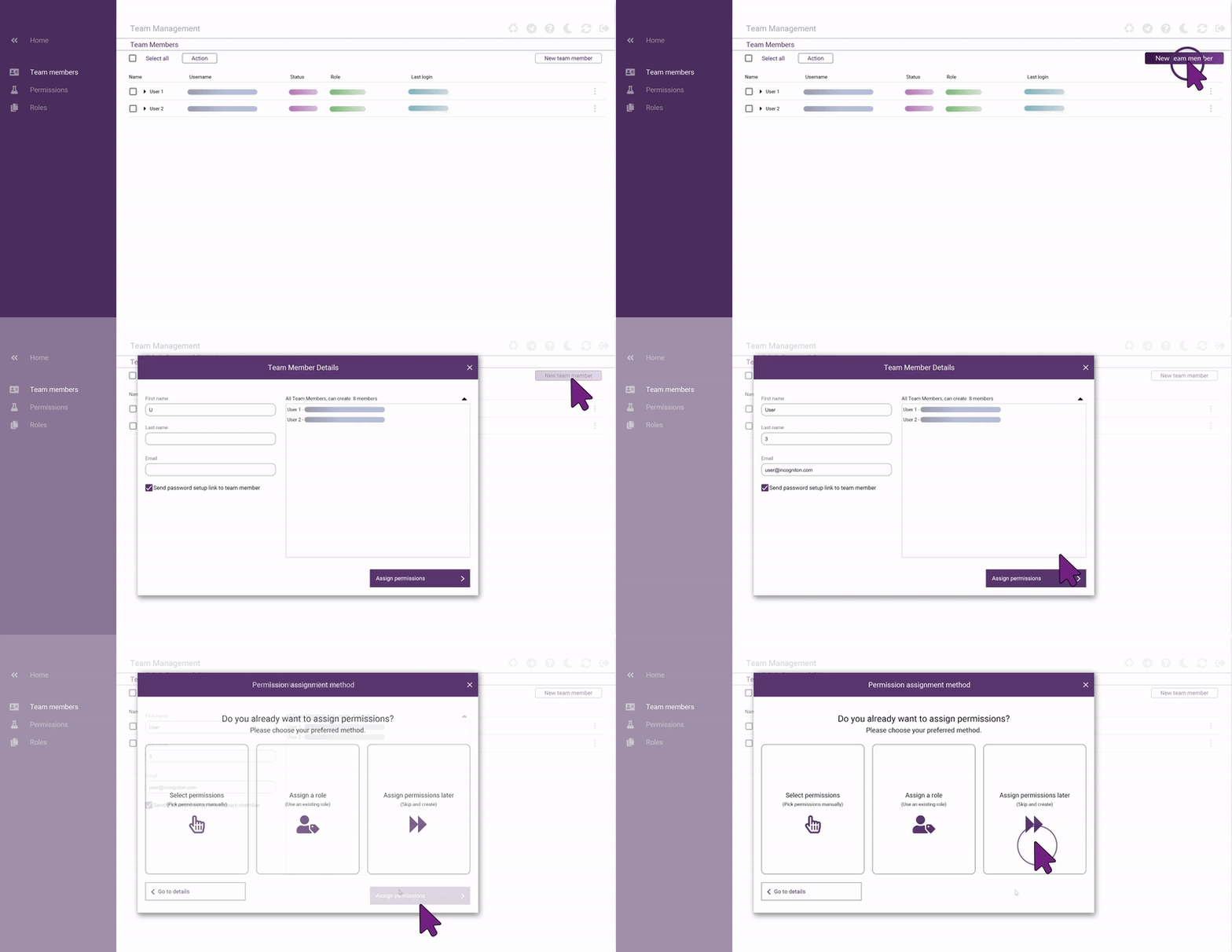
Profiles can be shared across team members using role‑based access controls, with all data synchronized through encrypted cloud storage, as explained in Incogniton’s team collaboration documentation. Teams work from the same profiles across devices without breaking continuity or duplicating environments.
Using Incogniton With Novproxy
Incogniton controls the device layer, while Novproxy handles the network layer. Keeping these responsibilities distinct allows each browser profile to operate with a clean, isolated fingerprint paired with a stable, independently managed IP address.
When Incogniton is paired specifically with Novproxy’s residential or ISP proxies, profiles benefit from consistent fingerprint behavior and predictable network characteristics across long sessions. This setup is well‑suited for regional targeting, aged accounts, and workflows where IP stability and repeatability are non‑negotiable.
How to Integrate Novproxy With Incogniton
Incogniton manages the browser and device identity layer, while Novproxy supplies the network layer. Integrating the two allows each browser profile to operate with its own isolated fingerprint and a dedicated proxy connection.
The setup process is straightforward and happens entirely at the profile level.
Step 1: Sign In to Incogniton
Download and install Incogniton from the official website. Open the application and sign in to your account.
Step 2: Create a Proxy in Novproxy
Log in to your Novproxy dashboard and create a new proxy based on your requirements. Novproxy offers residential and ISP-based proxies with country, city, and ISP-level targeting.
Once created, copy the proxy connection string provided by Novproxy (for example: [host:port:username:password] depending on your plan).
Step 3: Add the Novproxy to an Incogniton Profile
In Incogniton, open Profile Management and create a new browser profile or edit an existing one.
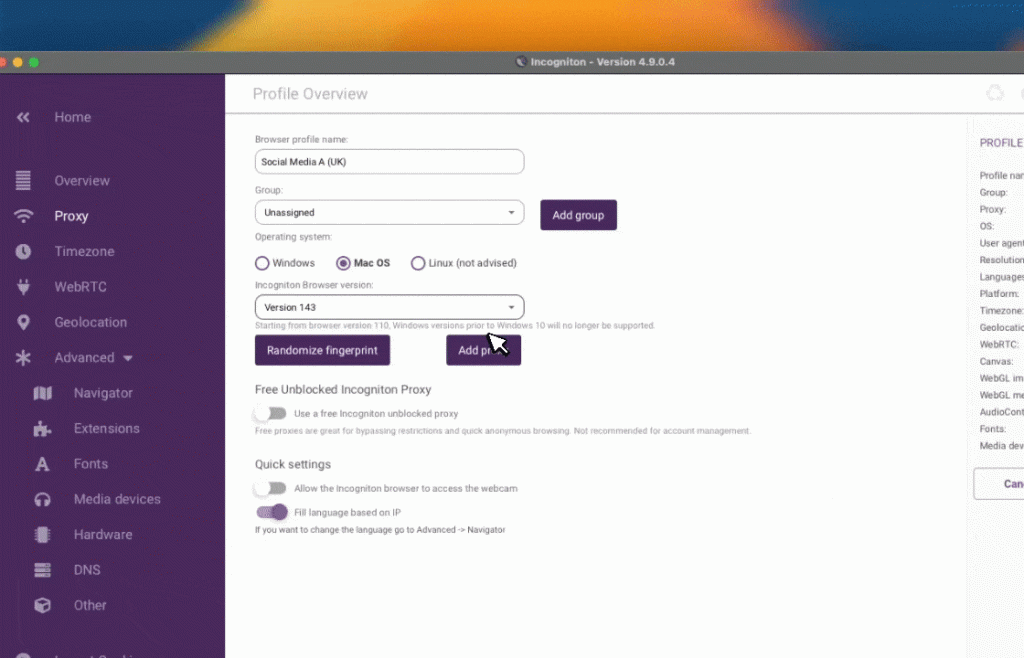
Navigate to the Proxy section and enter your Novproxy connection details. This configuration follows the same proxy setup process outlined in the Incogniton proxy configuration guide.Use Check Proxy to verify that the connection is working correctly, then save the profile.
Step 4: Launch and Verify the Profile
Start the configured profile. Inside the browser window, visit an IP-check service to confirm that the expected IP address and location from Novproxy are applied.
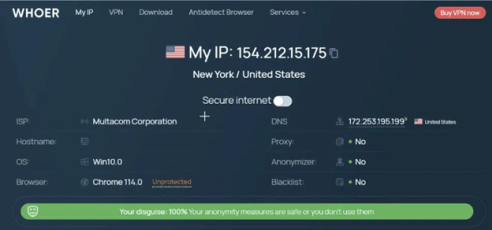
Once verified, the profile is ready for use with its own isolated browser environment and Novproxy network identity.
Final Assessment
Incogniton is a mature tool built for sustained, structured use. Its profile isolation is reliable, its fingerprint generation is realistic, and its tooling supports both manual operation and full automation.
The ceiling on what it can do is largely set by the quality of your proxies and the care taken during configuration. Get that right, and Incogniton provides dependable infrastructure—a foundation you can build on.If you’re looking to get started with Incogniton, the Incogniton Knowledge Hub provides comprehensive setup guides, best practices, and reference material.