


In scenarios such as network risk control and business operations, it is crucial to distinguish between IP addresses used by individuals at home (Native IPs) and those used by data centers/cloud servers (data center IPs). The two have obvious differences, and you can judge them quickly with the right methods.
I. Fastest Method: Check with Free IP Detection Websites
This is the most convenient way; you can directly check the detection results:
- Common Tools: ping0.cc, ipinfo.io, etc. (copy directly to the browser);
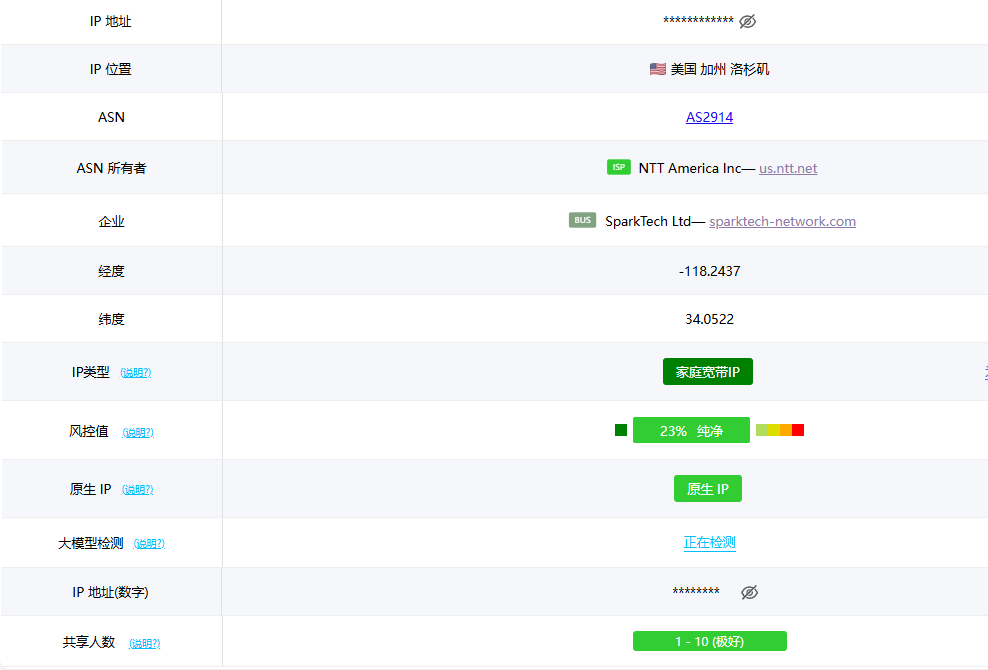
- Judgment Criteria: If the result is marked “Residential”, it is a native IP; if marked “Data Center/IDC”, it is a data center IP.
II. Core Differences Between Native IPs and Data Center IPs
| Comparison Dimension | Native IP | Data Center IP |
| Owning Entity | Individual users, provided by home broadband operators such as China Telecom, China Mobile, and China Unicom | Enterprises/service providers, provided by IDC data centers or cloud service providers like Alibaba Cloud and Tencent Cloud |
| ASN Attribute | ISP/Residential, associated with home broadband services | Hosting/Datacenter, associated with server hosting |
| Access Behavior | Human-like, with irregular access time and diverse content | Script/program-like, with regular access and concentrated targets |
| Risk Control Difficulty | High tolerance, hard to be blocked | Low tolerance, easy to be blocked |
| IP Quality | Scattered distribution, high purity, few violations | Often consecutive numbers, easy to be shared, low purity |
III. Test Steps: Taking NovProxy as an Example
If using NovProxy’s native IPs, you can complete the test following these simple steps to confirm the IP validity and residential attribute:
- Step 1: Obtain NovProxy IP Information Log in to the official NovProxy platform, select native IPs of the target region according to your needs, and obtain configuration information such as IP address, port number, account, and password.
- Step 2: Configure IP Environment – Computer (Windows/macOS): Enter system network settings, find the “IP” option, enable manual IP, fill in the obtained IP address and port, and enter the account and password to complete the configuration; – Browser (Chrome/Edge, etc.): Find “IP Server Settings” in browser settings, and configure directly or associate with system IP.
- Step 3: Verify IP Connection After configuration, open a browser to access detection websites such as ping0.cc and ipinfo.io, check if the current public IP is the native IP provided by NovProxy, and confirm that the IP type is marked “Residential”.
- Step 4: Test Usage Stability Normally access the target website or carry out business operations, observe the network response speed, and confirm again through the detection website that the IP has not changed, ensuring that the IP connection is stable and meets the needs of native IP usage.
Note: After the test, if you do not need to use the IP continuously, it is recommended to turn off the IP settings to avoid affecting daily network access.